
If you run an online store, you know that product images are everything. A clean, consistent product catalog can dramatically improve your conversion rates and make your brand look professional. But when you have hundreds — or even thousands — of product photos, cropping each one manually is a nightmare. That's where a batch image crop tool comes in.
In this guide, we'll walk you through how to batch crop product images for e-commerce using Batch Image Crop — a free browser-based tool that lets you bulk crop images in seconds. We'll also share best practices that professional e-commerce photographers use every day.
Why Consistent Product Images Matter
Before we dive into the how-to, let's understand why uniformly cropped images are so important for e-commerce success:
- Visual consistency builds trust. When all your product images share the same dimensions and framing, your store looks polished and reliable. Customers subconsciously associate visual consistency with brand quality.
- Grid layouts look better. Most e-commerce platforms display products in a grid. When images have different aspect ratios, the layout breaks — some images get stretched, others get awkward whitespace. Uniform crops solve this instantly.
- Faster page load times. Consistently sized images allow browsers to reserve the exact space needed, reducing layout shift (CLS). This improves both user experience and your Core Web Vitals score.
- Platform requirements. Many marketplaces like Amazon, Etsy, and Shopify have specific image dimension requirements. Batch cropping — or bulk cropping — ensures all your images meet those specs in one go.
Choosing the Right Dimensions
The first step before you batch crop images is deciding what dimensions to use. Here are the most common e-commerce image sizes:
Square (1:1) — The Universal Standard
Square images are the safest bet for most e-commerce platforms. They work perfectly in grid layouts and are the default on platforms like Instagram Shopping and many Shopify themes. Common sizes include:
- 1000 x 1000 px — Good balance of quality and file size
- 1500 x 1500 px — Recommended for zoom functionality
- 2000 x 2000 px — Best for high-DPI displays
Portrait (4:5) — Great for Apparel
If you're selling clothing, shoes, or accessories, a 4:5 portrait orientation gives you more vertical space to show the product in its full glory. This is also Instagram's preferred portrait ratio.
Landscape (16:9) — For Wide Products
Furniture, electronics, and horizontal products often look best in a 16:9 format. This ratio also works well for hero banners and featured product sections.
Pro tip: Whatever dimensions you choose, stick with them across your entire catalog. Mixing aspect ratios is the most common mistake in e-commerce photography.
Step-by-Step: Batch Cropping with Batch Image Crop
Now let's walk through the actual process of batch cropping your product images for e-commerce.
Want to follow along? Open Batch Image Crop and try each step as you read.
Open Batch Image CropStep 1: Upload Your Images
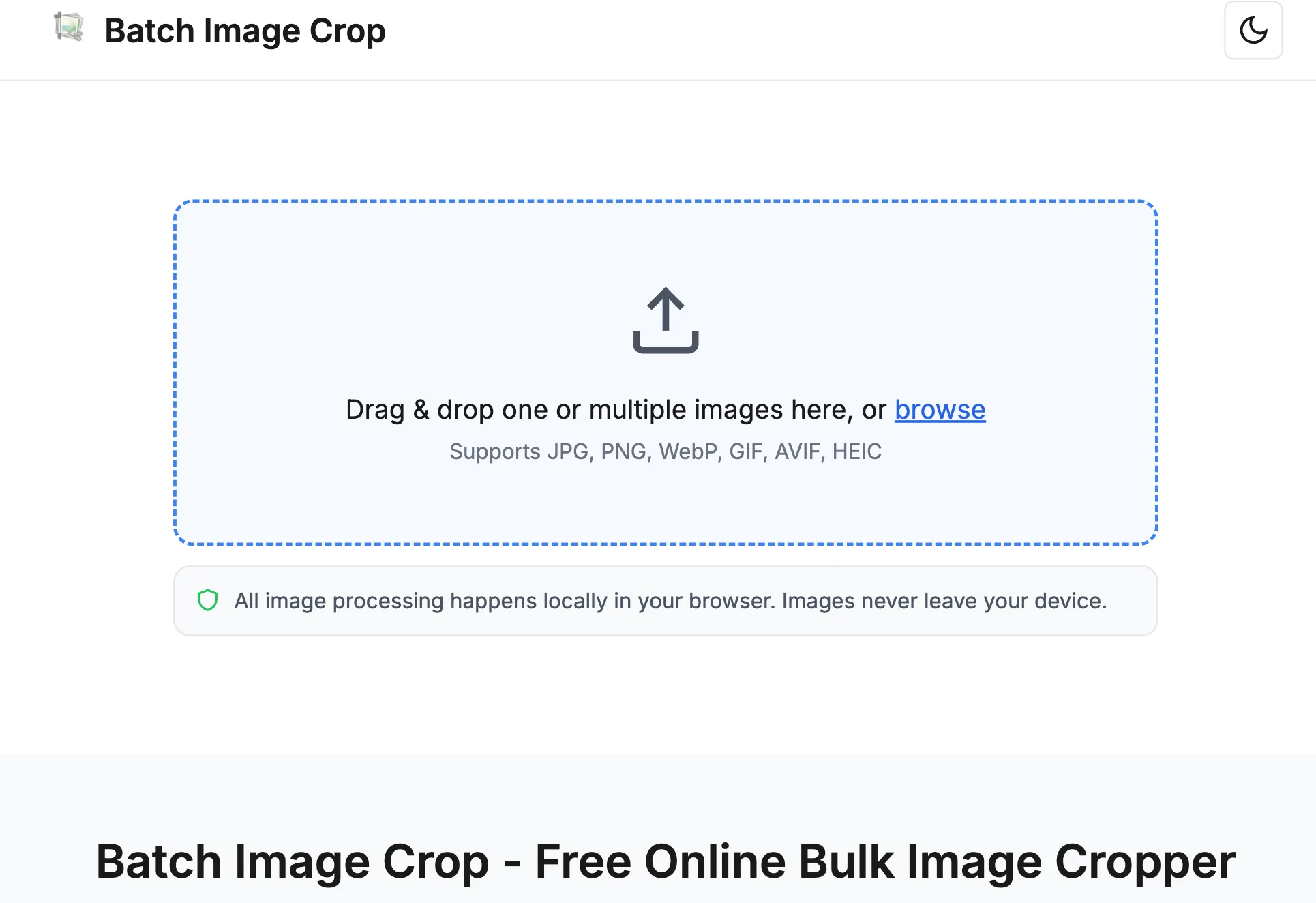
Drag and drop all your product photos into Batch Image Crop, or click to browse your files. You can upload dozens of images at once — there's no limit. The tool processes everything locally in your browser, so your images never leave your device. This makes it a safe choice for bulk cropping sensitive product photos.
Step 2: Choose Your Crop Mode
For e-commerce image cropping, you'll typically want one of these modes:
- Pixels mode: Set exact dimensions like 1000x1000 or 1500x1500. This is ideal when your marketplace has specific size requirements.
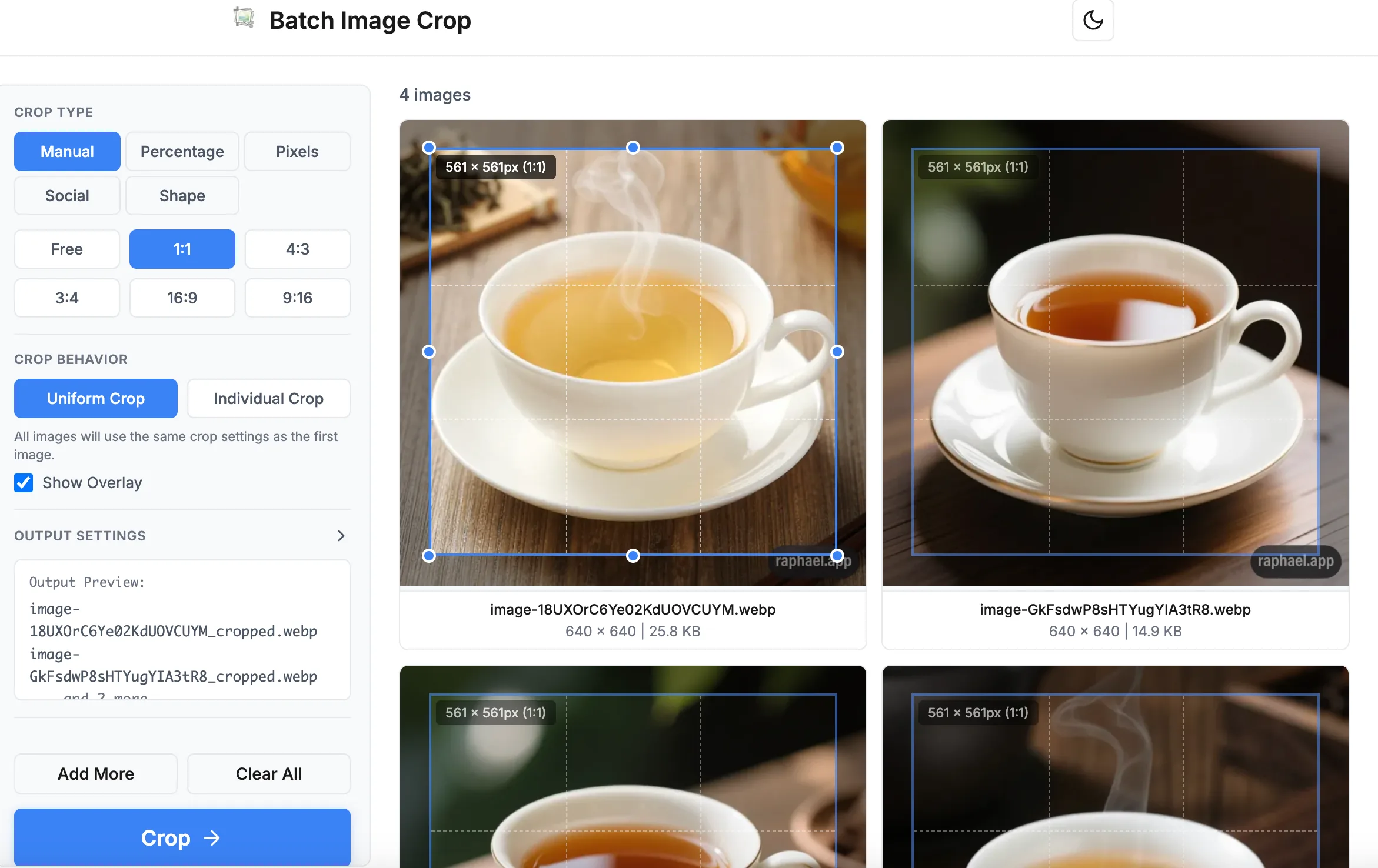
- Manual mode with a fixed aspect ratio: Choose 1:1 for square crops, 4:3 for a slightly wider look, or any other ratio. This lets you control the crop area while maintaining consistent proportions.
With Uniform Crop enabled, you adjust the crop area on the first image, and all other images automatically use the same crop settings. This is perfect when your products are photographed in a similar setup — same background, same framing.
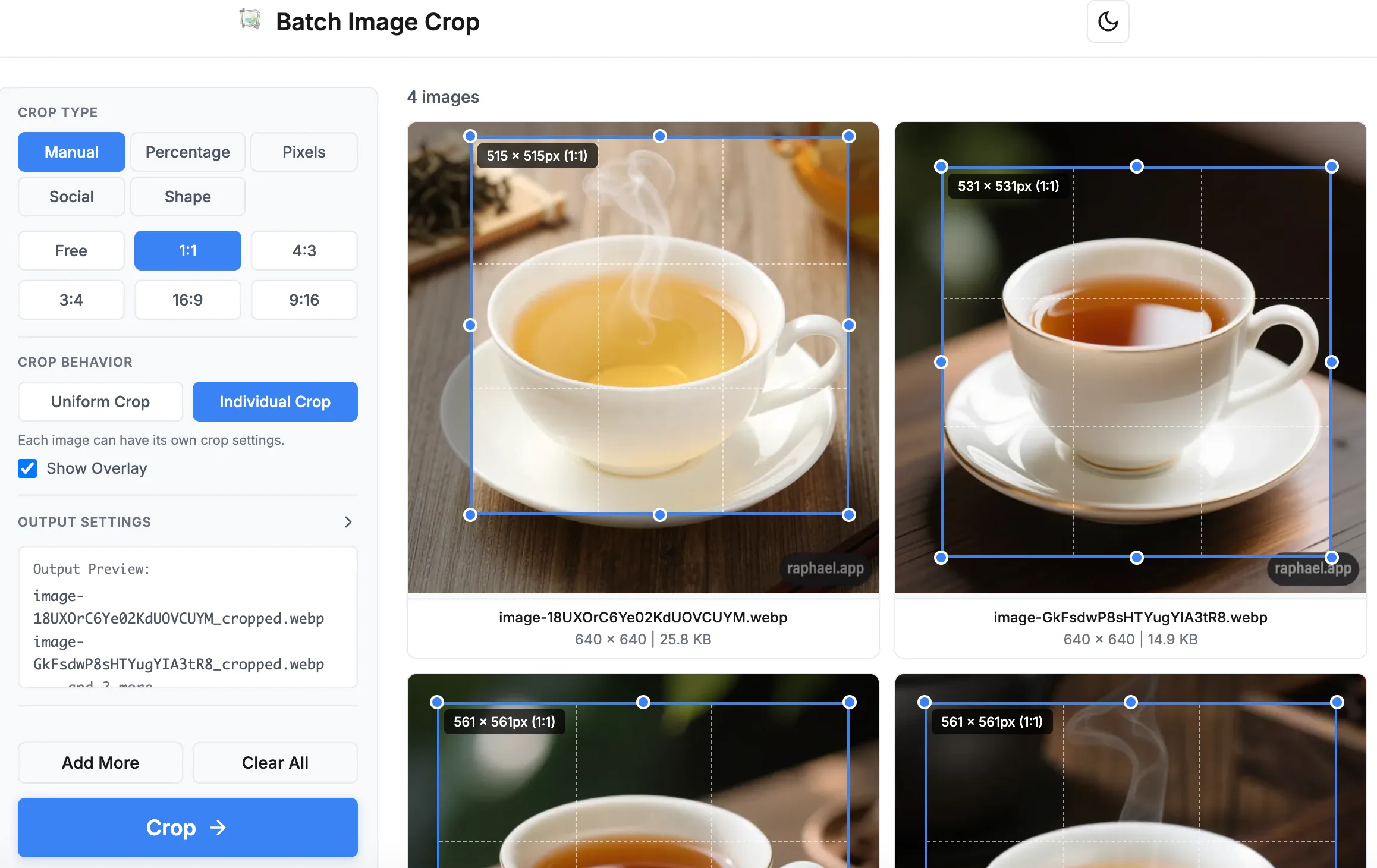
However, if the main subjects in your images aren't all positioned in the same spot — for example, some products are centered while others are off to one side — Uniform Crop may cut off important parts. In this case, switch to Individual Crop mode, which lets you fine-tune the crop area on each image separately while still maintaining the same output dimensions.
Step 3: Preview and Adjust
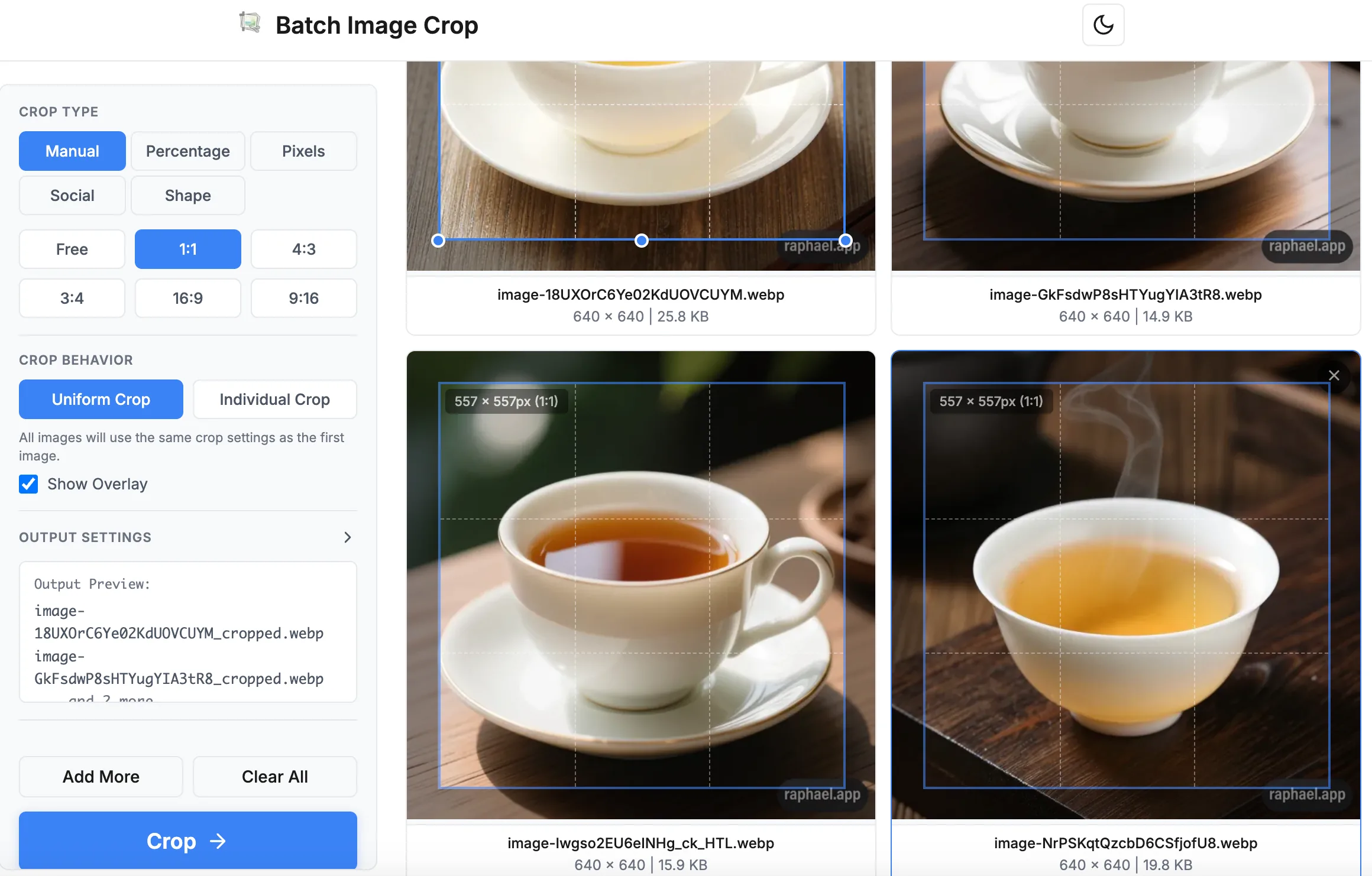
Before processing, scroll through all your images to verify the crop looks good. Click on any image to open the manual crop editor where you can drag and reposition the crop area. The real-time preview shows you exactly what the final result will look like.
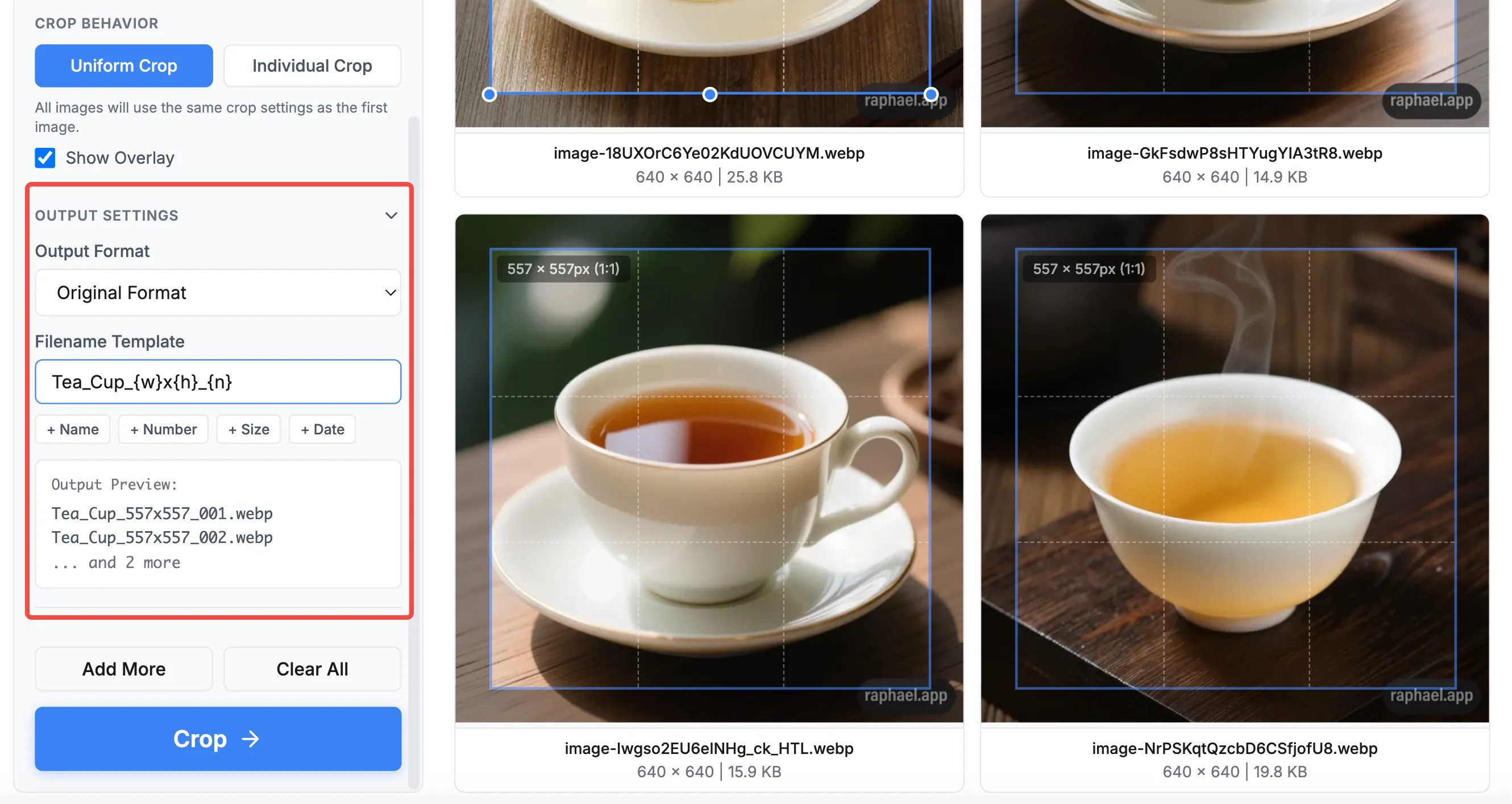
Step 4: Customize Output Filenames
Before downloading, you can customize how your output files are named using the filename template feature. For e-commerce, it's helpful to include the image dimensions and a sequential number in the filename — for example, product_1000x1000_01.jpg. This makes it easy to organize your catalog and quickly identify image specs without opening each file.
Step 5: Process and Download
Click the "Crop" button to process all images. Batch Image Crop packages them into a ZIP file and downloads it automatically. The entire bulk crop process happens in seconds, even with 50+ images.
Best Practices for E-Commerce Product Photos
Beyond batch cropping, here are some additional tips to make your e-commerce product images shine:
- Use a white or neutral background. Most marketplaces prefer (or require) a clean white background. This also makes your products pop in grid layouts.
- Center your product. Leave equal padding on all sides. A good rule of thumb is to have the product fill about 80-85% of the frame.
- Maintain consistent lighting. Even the best crop can't fix inconsistent lighting. Shoot all products under the same lighting conditions.
- Optimize file size. After cropping, consider your output format. WebP offers the best compression while maintaining quality. JPEG is universally supported. PNG is best for products with transparency.
- Name files descriptively. Use Batch Image Crop's filename template feature to generate organized filenames like
product-name_1000x1000.jpgautomatically.
Common Mistakes to Avoid
- Cropping too tight: Always leave some breathing room around the product. Images that are cropped too close to the edges feel cramped and unprofessional.
- Ignoring mobile: Over 60% of e-commerce traffic comes from mobile devices. Make sure your cropped images look good on small screens too.
- Using too-low resolution: Always crop from high-resolution source images. Starting with a 500px image and cropping to 1000px will result in a blurry product photo.
- Forgetting the zoom: Many e-commerce platforms offer a zoom feature. Your images should be large enough (at least 1500px on the longest side) to look sharp when zoomed in.
Wrapping Up
Batch cropping product images for e-commerce doesn't have to be a tedious, time-consuming task. With a bulk image crop tool like Batch Image Crop, you can prepare hundreds of perfectly cropped, consistent product photos in minutes rather than hours. The key takeaways:
- Choose a consistent aspect ratio and stick with it across your catalog
- Use Uniform Crop mode for products shot in similar setups
- Always preview before processing
- Optimize your output format for the best quality-to-size ratio
Ready to streamline your e-commerce product photography workflow? Give Batch Image Crop a try — it's free, runs entirely in your browser, and lets you bulk crop images without any signup.